Fix QuickBooks H202 switching to multi-user mode with this step by step guide. Learn causes, solutions, and tips for a smooth QuickBooks desktop multi user setup.
TABLE OF CONTENTS
- Introduction
- What Is the QuickBooks H202 Error?
- Why Does H202 Occur During a Single User to Multi User Switch?
- How to Fix QuickBooks H202 Switching to Multi-User Mode — Step by Step Solution
- Step 1: Use the QuickBooks File Doctor Tool
- Step 2: Check and Configure Hosting Settings
- Step 3: Verify QuickBooksDBXX Service Is Running
- Step 4: Allow QuickBooks Through Windows Firewall
- Step 5: Edit the Windows Hosts File
- Tips to Prevent H202 After QuickBooks Desktop Multi User Setup
- Conclusion
- Frequently Asked Questions (FAQs)

INTRODUCTION
QuickBooks H202 multi-user switch fix is one of the most frustrating errors business owners face when trying to access their company file from another computer. It stops your team cold — right when they need to get work done. In this guide, you will learn exactly what causes the H202 error, why it appears during a single user to multi user switch, and how to fix it using a clear, H202 step by step solution that actually works.
What Is the QuickBooks H202 Error?
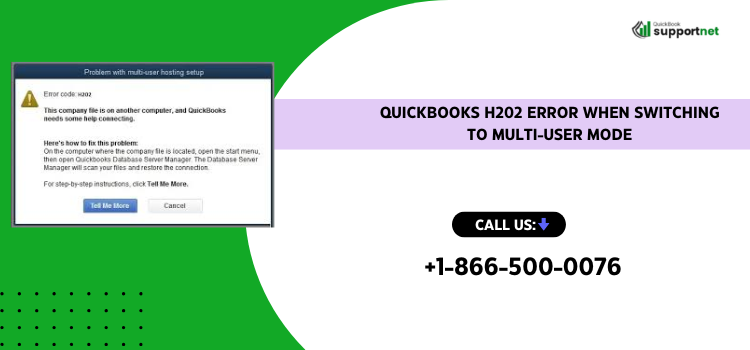
The H202 error shows up when QuickBooks Desktop cannot communicate with the server hosting the company file. It is a network-related error, not a file corruption issue.
When you see this error, QuickBooks displays a message like:
“You are trying to work with a company file that is located on another computer, and that computer needs to have QuickBooks opened on it.”
However, even when QuickBooks is open on the host machine, the error can still appear. That tells you the real problem lies deeper — in your network or service settings.
Why Does H202 Occur During a Single User to Multi User Switch?
Understanding the root cause makes fixing it much easier. The QuickBooks H202 switching to multi-user mode error typically happens because of one or more of these reasons:
- The QuickBooksDBXX Windows service is not running on the host computer
- Hosting mode is enabled on the wrong machine (workstation instead of server)
- Windows Firewall is blocking QuickBooks network ports
- The host computer’s IP address is not listed in the Windows Hosts file
- DNS or network name resolution is failing between computers
Moreover, antivirus software can sometimes block QuickBooks from communicating across the network, which triggers the same H202 error during a single user to multi user switch.
How to Fix QuickBooks H202 Switching to Multi-User Mode — Step by Step Solution
Follow these steps carefully. The H202 step by step solution below covers the most effective fixes, starting with the simplest.
Step 1: Use the QuickBooks File Doctor Tool
The QuickBooks Tool Hub includes a built-in File Doctor that diagnoses and repairs many network errors automatically.
- Download and install the QuickBooks Tool Hub from the official Intuit website
- Open the Tool Hub and click on “Company File Issues”
- Select “Run QuickBooks File Doctor”
- Choose your company file from the dropdown menu
- Select “Check your network” and click Continue
- Enter your QuickBooks admin password when prompted
- Wait for the scan to finish and follow any on-screen instructions
This tool alone resolves QuickBooks H202 switching to multi-user mode in many cases. Therefore, always start here before trying anything else.
Step 2: Check and Configure Hosting Settings
Incorrect hosting settings are a very common cause of this error during a QuickBooks desktop multi user setup.
On each workstation (not the server), do the following:
- Open QuickBooks Desktop
- Go to File > Utilities
- If you see “Host Multi-User Access,” do NOT click it — that means hosting is off, which is correct for workstations
- If you see “Stop Hosting Multi-User Access,” click it to disable hosting on that machine
Only the main server or host computer should have multi-user hosting turned on. This small change often fixes the QuickBooks H202 switching to multi-user mode problem instantly.
Step 3: Verify QuickBooksDBXX Service Is Running
The QuickBooksDBXX service manages multi-user connections. If it is stopped, no other computer can access the company file.
- Press Windows + R, type services.msc, and hit Enter
- Scroll down and find QuickBooksDBXX (XX = your QuickBooks version year)
- Right-click it and select “Start” if it is not running
- Set the Startup Type to “Automatic” so it starts on its own
This step is critical for a proper QuickBooks desktop multi user setup. Need help with this? Call us at +1-866-500-0076 for guided assistance.
H3: Step 4: Allow QuickBooks Through Windows Firewall
Windows Firewall often blocks the ports QuickBooks needs for multi-user communication.
Ports to allow for QuickBooks:
- Port 8019 (used by all QuickBooks versions)
- Ports 56728, 55378–55382 (vary by version)
Steps to add firewall exceptions:
- Open Windows Defender Firewall
- Click “Allow an app or feature through Windows Defender Firewall”
- Scroll down and find QuickBooks and QBDBMgrN
- Make sure both Private and Public boxes are checked
- Click OK to save
This step is especially important if the H202 step by step solution from earlier steps did not fully resolve the issue.
Step 5: Edit the Windows Hosts File
If your network cannot resolve the server’s computer name to its IP address, QuickBooks H202 switching to multi-user mode will keep appearing.
- Find the host computer’s IP address by opening Command Prompt and typing ipconfig
- Note the IPv4 address shown
- On each workstation, open Notepad as Administrator
- Go to File > Open and navigate to: C:\Windows\System32\drivers\etc\hosts
- At the bottom of the file, add a new line: [Server IP Address] [Server Computer Name]
- Save the file and restart QuickBooks
After completing this, test QuickBooks H202 switching to multi-user mode again on each workstation.
Also Read This: QuickBooks delivery server down
Tips to Prevent H202 After QuickBooks Desktop Multi User Setup
Once you fix the error, keep it from coming back with these habits:
- Always update QuickBooks Desktop to the latest release
- Keep Windows updated on all computers in the network
- Use a wired network connection instead of Wi-Fi for the host computer
- Regularly check that the QuickBooksDBXX service is set to start automatically
- Avoid running QuickBooks as a regular user — always use admin credentials during setup
A stable QuickBooks desktop multi user setup depends on a clean, consistent network environment. These small steps save big headaches later.
Visit timebusinessnews for more info
Conclusion
The QuickBooks H202 switching to multi-user mode error is annoying, but it is fixable. By checking hosting settings, running File Doctor, configuring your firewall, and verifying Windows services, you can get your whole team back to work quickly. The H202 step by step solution in this guide covers every major cause. Ready to get your QuickBooks running smoothly again? Contact QuickBooksupportnet today or call us at +1-866-500-0076 — we are here to help!
Frequently Asked Questions
Q1. What causes the QuickBooks H202 error when switching to multi-user mode?
The H202 error occurs when QuickBooks cannot connect to the company file on the host computer. Common causes include incorrect hosting settings, a stopped QuickBooksDBXX service, firewall blocks, or a failed DNS lookup. Fixing any one of these during a single user to multi user switch usually resolves the problem.
Q2. How do I fix QuickBooks H202 switching to multi-user mode on a workstation?
Start with the QuickBooks File Doctor tool in the Tool Hub. Then check that hosting is disabled on the workstation and enabled only on the server. Following the H202 step by step solution in this article — covering services, firewall, and the hosts file — will resolve most cases.
Q3. Can a firewall block the QuickBooks multi-user connection?
Yes. Windows Firewall or third-party antivirus software can block the ports QuickBooks uses for network communication. During a QuickBooks desktop multi user setup, you must add exceptions for QuickBooks and QBDBMgrN in your firewall settings. This is one of the most overlooked fixes for the H202 error.
Q4. How do I check if QuickBooksDBXX service is running?
Press Windows + R, type services.msc, and press Enter. Look for the QuickBooksDBXX entry in the list. If its status is not “Running,” right-click and select Start. For help doing this remotely, reach out to QuickBooksupportnet at +1-866-500-0076 and a technician will walk you through it.
Q5. Does the H202 error mean my company file is damaged?
No. The H202 error is a network communication error, not a file corruption error. Your company file is likely fine. The issue is that QuickBooks cannot reach the host computer across the network. Once you fix the connection problem using the H202 step by step solution, your data will be fully accessible.
Q6. Can I switch from single user to multi user mode without losing data?

Absolutely. The single user to multi user switch in QuickBooks does not affect your company file data. It simply changes how QuickBooks connects to the file. Go to File > Utilities > Host Multi-User Access on the server, and your workstations can then connect without any data loss.