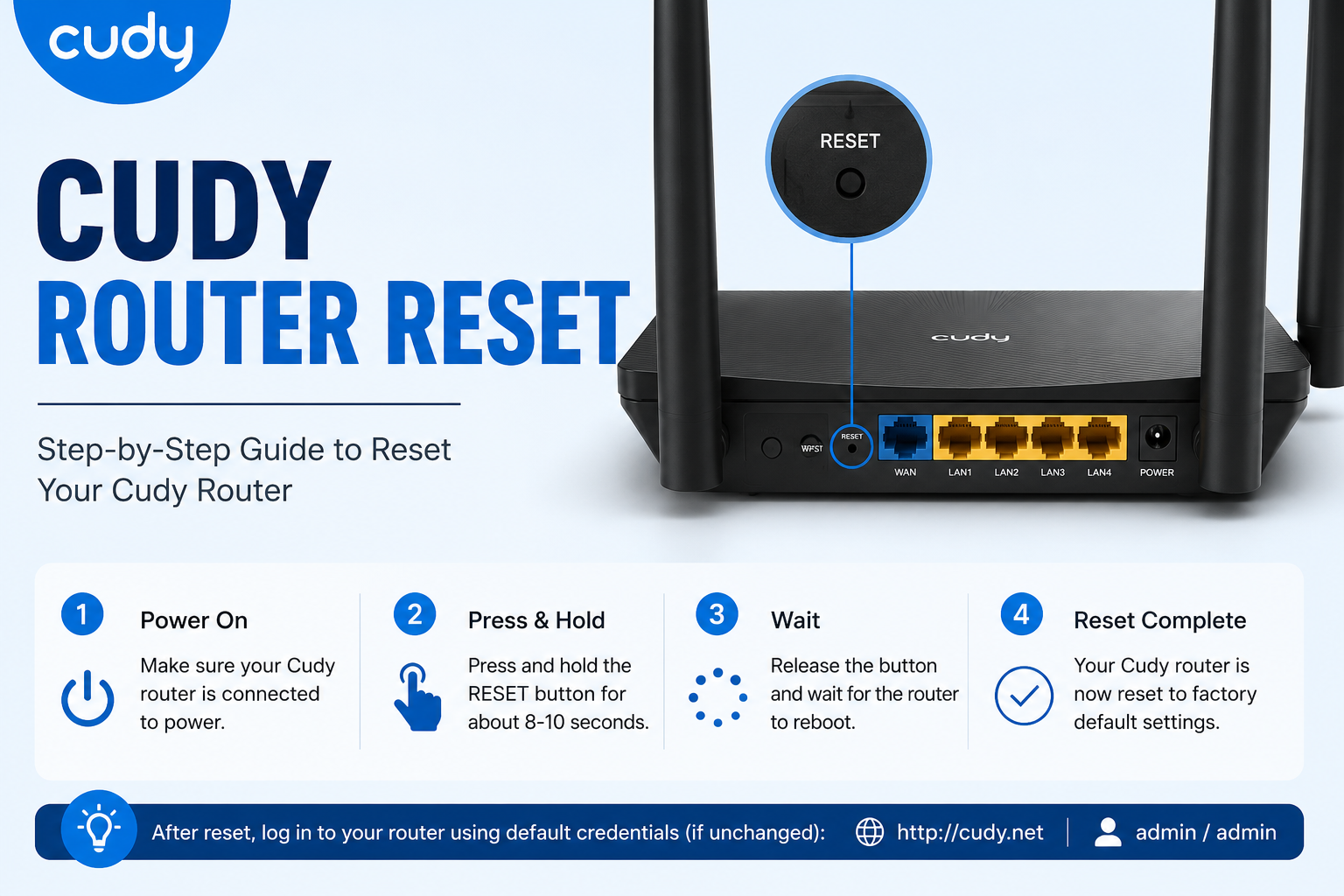
Holding down the Reset button for around ten seconds will cause the LED lights on your Cudy router to blink. After the router returns to its factory settings, you can use the Cudy router login page to reconfigure it.
Your router may occasionally cease functioning properly. The internet slows down. Devices frequently disconnect. Alternatively, you can forget the admin password. A Cudy router reset can help swiftly resolve the issue in these situations.
It’s easy to reset a router. It only takes a few minutes. The router returns to its initial factory settings following the reset. After that, you can start over and setup everything.

This post will teach you when to reset your router, why it’s beneficial, and how to safely reset your Cudy router.
A Cudy Router Reset: What Is It?
Restoring the router to its original factory settings is known as a Cudy router reset.
When the router is reset:
- Wi-Fi names are eliminated.
- Passwords for Wi-Fi are erased.
- The default admin login credentials are restored.
- Personalized settings are deleted.
- Configurations for networks are deleted.
Consider it a new beginning for your router.
When Is It Time to Reset a Cudy Router?
In the following circumstances, you might need to reset your router:
Lost Password for Login
- A reset can restore the default credentials if you are unable to access the admin panel via the Cudy router login page.
Issues with the Internet
- Resetting your internet connection could help if it keeps dropping or becomes erratic.
The router is not responding.
- The router occasionally freezes or malfunctions. Restoring regular operation may be helped by a reset.
Prior to Selling the Router
- Resetting the router eliminates your personal settings if you want to sell or give it away.
Errors in Configuration
- Network problems may arise from incorrect settings. You can start anew with a factory reset.
Why Is Resetting Your Cudy Router Important?
Many common issues can be solved with a router reset.
Advantages consist of:
- Eliminates the wrong settings.
- Resolves problems with connections.
- Restores the original login credentials.
- Enhances the performance of the router.
- Helps in troubleshooting.
- Offers a new environment for setup.
But keep in mind that all personalized settings will be removed.
How Can a Cudy Router Be Reset?
To effectively reset the Cudy router, follow these easy instructions.
Method 1: Use the physical reset button to reset
The most popular approach is this one.
1: Activate the router
- Verify that the router is powered on and plugged in.
2: Find the Reset Button
- Locate the little Reset button or hole on the router’s side or back.
3: Hold and Press
- Use a paperclip, pin, or SIM ejector tool.
- Hold down the Reset button for ten to fifteen seconds.
4: Await LED illumination
- The LED indications will either restart or blink.
- This verifies that the reset procedure has begun.
5: Let the router restart
- Select Factory Reset.
6: Verify the Reset
- Verify your decision.
The router will automatically restart.
What Takes Place Following a Cudy Router Reset?
Following a reset:
- Every custom configuration vanishes.
- Wi-Fi names revert to their original state.
- Passwords are changed.
- The port forwarding configuration is eliminated.
- Parental controls are removed.
- The guest network settings are deleted.
You must configure the router again.
This comprises:
- Establishing a new Wi-Fi name.
- Changing the Wi-Fi password.
- Changing the security configuration.
- Reconnecting every gadget.
What Happens If You Can’t Press the Reset Button?
Occasionally, users are unable to use the button to reset the router.
Try these fixes:
Press the Button for a Longer Time
- For at least ten to fifteen seconds, keep pressing.
Make Use of the Correct Tool
- To fully reach the reset switch, use a paperclip or pin.
Examine the power supply
- During the reset procedure, make sure the router is on.
Try again after restarting.
- Reboot the router first and then attempt the reset.
Make use of the Admin Panel
- Use the router dashboard to reset the router if the button doesn’t work.
How Can Cudy Router Reset Problems Be Solved?
Try these troubleshooting tips if the reset procedure isn’t working.
The router keeps disconnecting.
- After the router has been reset, update the firmware.
Unable to Log in to Cudy Router
- Reconnect to the router network after clearing the cache in your browser.
The router doesn’t restart
- After 30 seconds of power outage, reconnect it.
Wi-Fi is not seen.
- The router might still be setting up, so wait a few minutes after the reset.
After a reset, the internet is not functioning.
- During setup, adjust your ISP’s settings once more.
Is Resetting a Cudy Router Safe?
Resetting a Cudy router is safe, yes. Hardware is not harmed by a factory reset. Only configurations and saved settings are deleted. When they have network problems or forget their login information, many users reset their Cudy routers.
Just don’t forget to make a backup of any crucial settings formerly you try to reset them.
What Advice Should You Take Both Before and After Resetting?
Here are some helpful pointers:
Prior to Reset
- Important router settings should be saved.
- Take note of your ISP details.
- Keep track of unique configurations.
- Prepare your login credentials.
- Change the default admin password after the reset.
- Make sure your Wi-Fi password is secure.
- Turn on WPA2 or WPA3 security.
- Update the firmware on your router.
- Reconnect every gadget.
These actions enhance both performance and security.
FAQs
How long does a Cudy router reset take?
A complete reset usually takes 2–5 minutes, including the reboot process. The router will restart automatically after restoring factory settings.
Will resetting my Cudy router delete Wi-Fi settings?
Yes. A factory reset removes all saved Wi-Fi names, passwords, and customized network settings from the router.
Can I reset Cudy router without the Reset button?
Yes. You can access the admin dashboard through the Cudy router login page and use the Factory Reset option.
What is the default login after a reset?
After resetting, the router returns to its factory credentials. Check the router label or user manual for default login information.
Does resetting fix internet connection problems?
In many cases, yes. A reset can remove incorrect settings and restore stable network performance.
Final Thoughts
One of the simplest solutions for router-related issues is a Cudy router reset. Resetting your router can give it a new start, regardless of whether you altered the wrong settings, forgot your password, or are having trouble connecting.

It’s an easy method that takes a few minutes. For a safer network experience, don’t forget to finish the setup once more via the Cudy router login site and set up robust security.